How to find a Discord Channel ID

Sometimes you may need to use the ID of a Discord channel to interact with Discord's API to, for instance, send messages through a bot or integration to a specific channel. With this guide, you can find the ID needed to perform these or any other actions you may need!
Finding a Channel ID
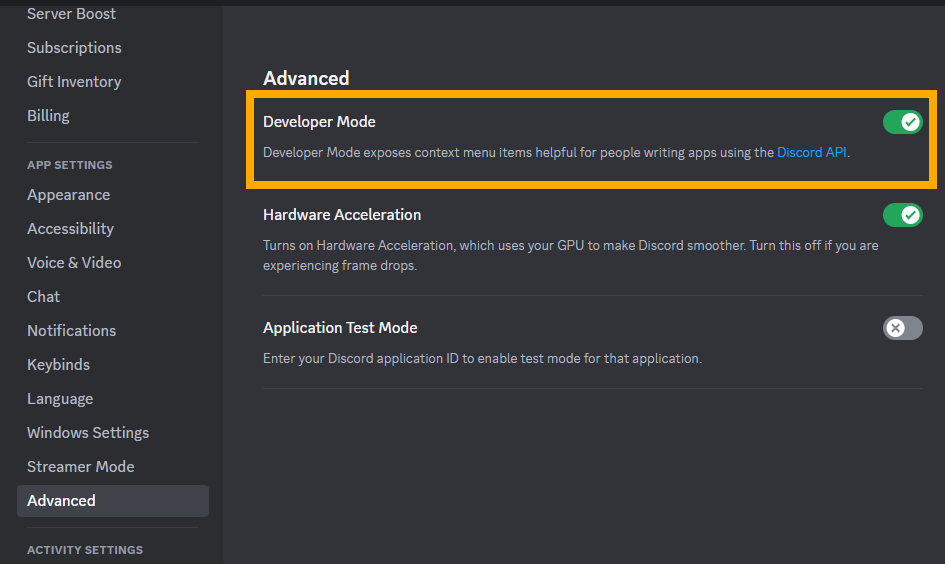
Locating the channel ID first requires turning on Discord's Developer Mode which enables options in menus that are primarily used to aid in working with the Discord API.
If Developer Mode has already been enabled then skip to step 3.
Step 1. Open "User Settings":

Step 2. Go to "Advanced Settings" and enable "Developer Mode":
Step 3. Locate the channel you need the ID of and right click it, then click "Copy Channel ID":

No permissions are needed to be able to copy a channel ID.
Step 4. With the channel ID copied, you can now paste it wherever necessary with Ctrl+V:

Need help or have suggestions? Join our support server.