Verification
Module for handling verification tools
The Verification module offers the ability to give and take roles on join and verify, allowing for the creation of Verification Security Walls.
Verification can be done through either the /verify command (which can be used in your Discord server), or by using a verification embed or DM.
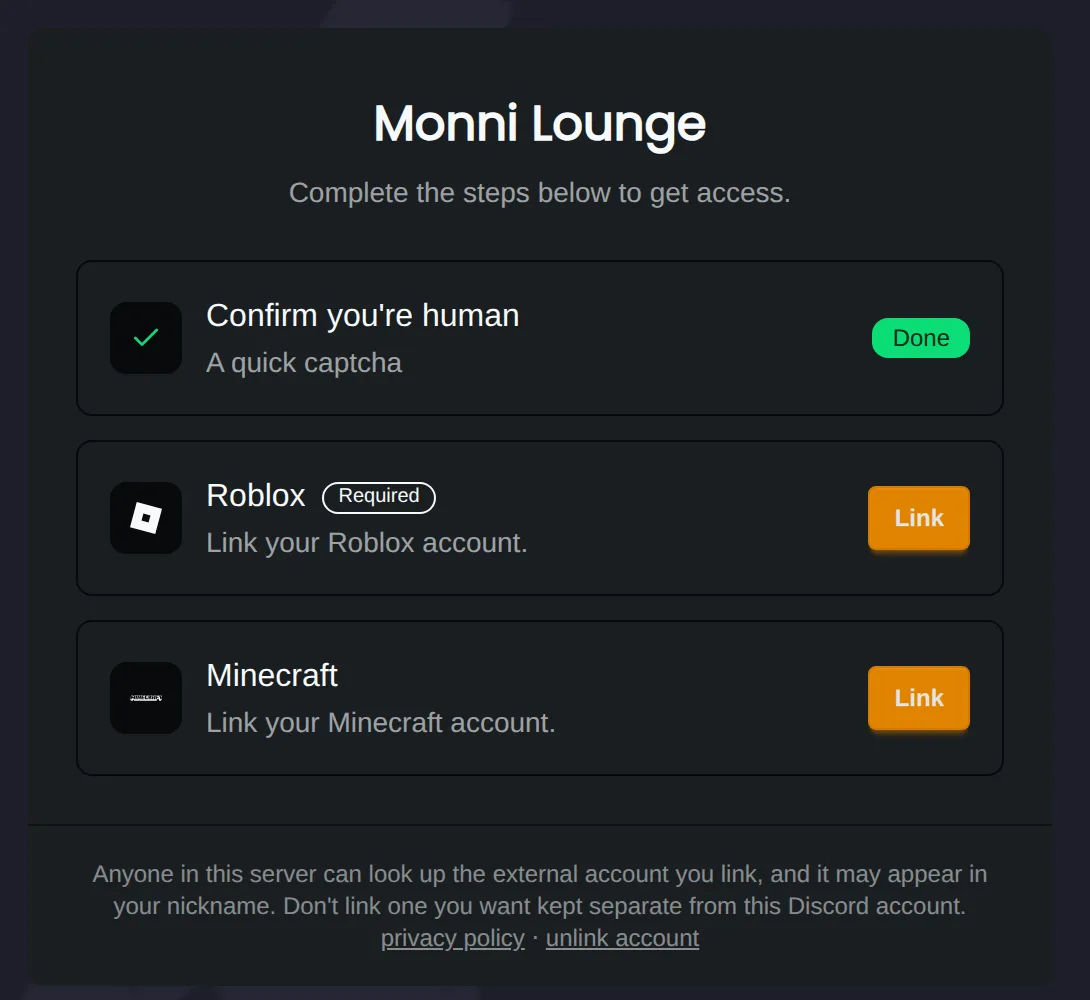
Verification Embeds can be sent to any channel by accessing the verification module's settings in the dashboard (https://monni.fyi/dashboard/) and are visible to everyone.
You can also change the nickname of a member on verify, in the Verification Module's Settings. Supported template variables are shown in the settings.
Using Verification
There are a few things you'll need to configure before verification works in your server.
Verification Platform
Allows you to select which types of verification you want to use and if they should be mandatory or optional.
Verified Role
This is the role a member will get when they verify.
Unverified Role
This is the role a member will get when they join your server and have not yet verified.
Once a member verifies, the unverified role will be removed from them.
Reaching Members
We offer a few ways to let your members know to verify their account and information about the verification progress.
Direct Message On Join
Sends a verification message to new members who join your server.
Confirmation Message
Sends a confirmation message about completion of verification.
Verification Message
Sends a message to a channel which lets members know about verification.
Captcha
You can enable Captcha as a separate feature. If enabled, members need to complete a Turnstile Captcha as part of the verification process.
If only Captcha is enabled, members are prompted to verify. Once they've completed the Captcha, they will have completed the verification process, like normal.
Platform Settings
Each platform shares certain settings. For platform-specific settings, please look under services.
Required Toggle
Lets you configure if you want this platform to be mandatory in order to verify.
Grant Role
Lets you configure a role which will be given upon verifying with this platform.
The role is granted right after verifying with the platform, even if the full verification process isn't done.
One Member Per Account
Ensures only one external account can be used by one member.
Nickname
A nickname template used only for members who verify with this platform. Leave it empty to use the server wide verification nickname.
Minimum Account Age
Refuses accounts newer than this many days, to keep fresh alt accounts out. Set it to 0 to turn the check off. This is only available for platforms that share an account creation date, like Roblox.
Verification Nickname
We provide a way for you to set a nickname automatically when a user verifies. A global nickname is used if set, unless a mandatory verification platform is set. In other cases, platform-specific nicknames are used. If multiple platform-specific nicknames exist, the first one linked from the platforms configured in the dashboard is used.
Verified Roles
Verified roles exist to let you guard access to your server behind verification. Unverified role is given when a member joins, and Verified role is given once all mandatory verification platforms are completed.
Ban Settings
Ban settings let you configure whether external accounts should also be banned when a member is banned. Let's say Rose with Roblox account Rose0212 is banned from your server. You can configure the Roblox account to also be banned so if Rose joins with an alt account and verifies with Roblox account Rose0212 they will automatically be banned.
Accept Ban Identities
You can choose to accept external account bans from other Discord servers. In order to accept ban identities, you need the share_ban_identity permission from cross guild settings.
Passporting
Passporting lets servers configure which servers can be trusted as a source of truth for verification, letting anybody who verified there skip verification in the server. A passport can optionally be narrowed to accept only specific platforms verified in the source server. This can be used when you have one hub server and then other servers people may join.
User Settings
Users can manage their linked accounts from their settings.
Additional Information
-
A short guide for setting up a verification system can be found here.
-
All available commands relating to the Verification Module can be found here.
Related Topics
Services
2 items